Introduction
Harbor's member portal lets a person recover an account after forgetting a password. A reset email carries a temporary token: possession of that token should authorize one password change for one account. Support has found that links can be reused and can change another account's password.
You will first recover a synthetic account normally, observe the unsafe behavior, and repair one small Python handler. No Python experience is required; the lesson explains the function and conditions before the edit. You should be comfortable entering a terminal command and switching tabs.
Use Portal Web for the application, Mailbox Web for synthetic email, and App Server for the prepared code. They run on this one independent training instance. There is no external email delivery. Tokens, expiry comparisons, database transactions, password changes, and login are real; this small app is not a production identity system.
Recover an Account Normally
In this step, you will follow a reset email and sign in with the new password, establishing the business behavior the repair must preserve.
Select the Portal Web tab in the lab interface to begin this step.
An account identifies a person; a password proves that person can sign in. If a password is forgotten, a reset link temporarily authorizes changing it. The token inside the link is not the password. This local mailbox lets you act as the owner of two synthetic accounts, maya and noah. Both begin with StartPass42!. Only use these training accounts.

Switch to the Portal Web tab. Find Request a reset link. Enter maya in Recovery account and click Send reset link. The response says Link requested. Open Local Mailbox. Switch to the Mailbox Web tab. If a reset form or result is showing, select Local Mailbox to return to the message list. Refresh the message list to see the newest message at the top. It names the recipient and contains Open reset link plus a token string.
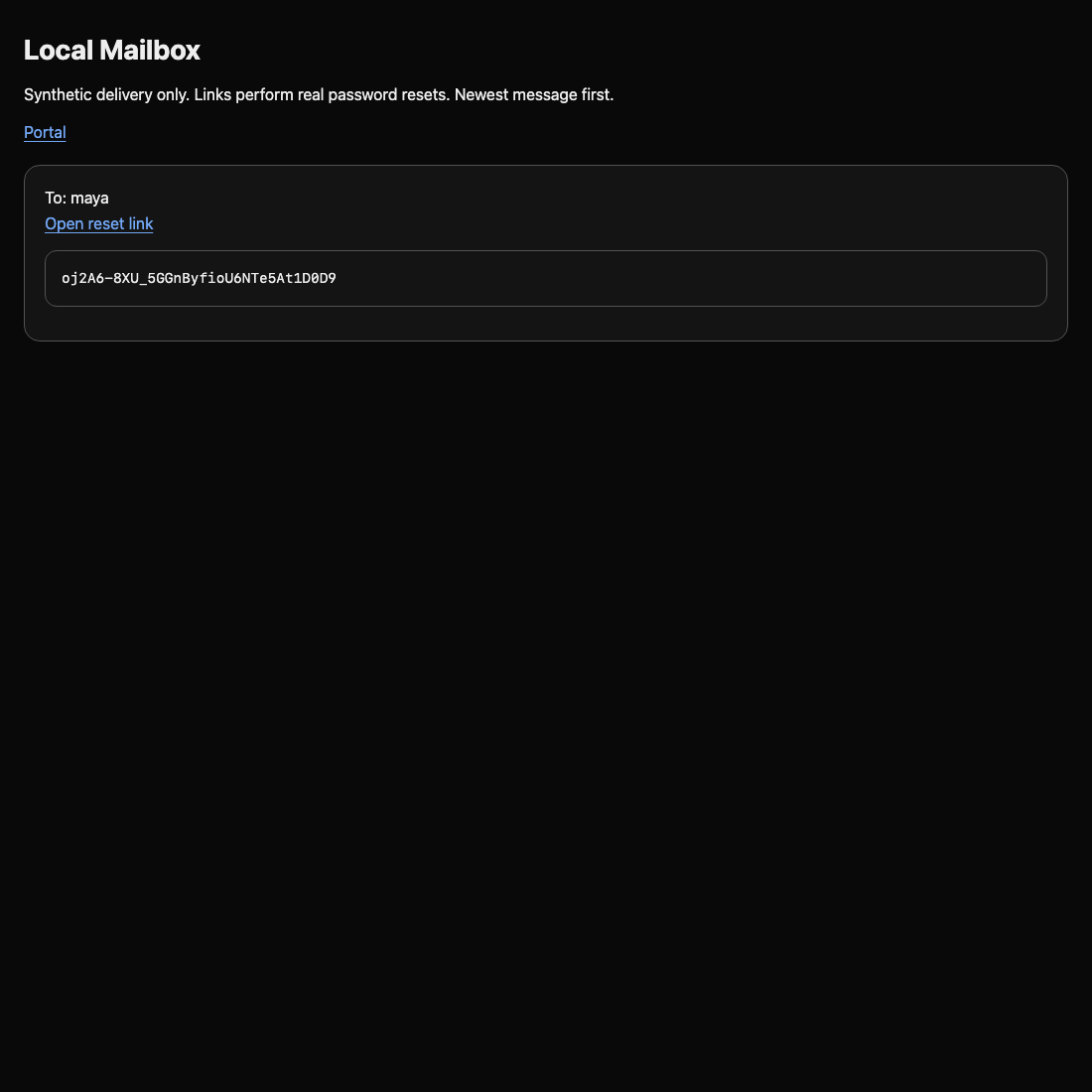
Use the link and token shown in your current Mailbox Web tab; token values differ between environments.
Click Open reset link in that message. The link opens a reset form within the same tab. It fills Token and Reset account. Keep those fields unchanged; enter FirstPass42! in New password, then click Reset password. Expect Reset accepted and HTTP 200.

HTTP is the request/response conversation between a browser and a server. Here 200 means accepted, 403 means a valid request was denied, and 500 means an application error. A connection error is different from a security denial.
Switch to the Portal Web tab. If the request result is showing, select Back to portal to reopen the forms. Use Sign in: Login account maya, Password FirstPass42!, then Sign in. Expect Login accepted. A working reset changes the actual password, not just a label on a page.
If you lose a link, request another through the same form and use the newest mailbox message. Links last 30 minutes. You do not need to restart the environment for an expired link or typing mistake.
Observe the Broken Boundary
In this step, you will use disposable demonstration changes to distinguish a token's owner, lifetime, and one-time permission.
Select the Portal Web tab in the lab interface to begin this step.
A browser sends form fields, each with a name and value. A user can change them, so a server cannot trust Reset account merely because the original email filled it. The server holds a separate token record:
| Field | Meaning |
|---|---|
account |
Account allowed to use this token |
expires_at |
Last allowed time, stored as seconds since a fixed clock origin |
used |
0 before use; 1 after use |
A new token is usable only for its owner before expiry. A successful reset moves it to used; it must never become usable again. An unused token can also become expired as time passes. Neither a used nor an expired token authorizes another reset.
Reuse One Link
Switch to the Portal Web tab, select Back to portal if a result is showing, and request a new link for maya. Switch to the Mailbox Web tab. If a reset form or result is showing, select Local Mailbox to return to the message list. Refresh the message list, open the newest link, and reset maya to DemoPass42!. In the Mailbox Web tab, select Local Mailbox on the result page to return to the message list. Reopen the same message's link and reset maya to ReplayDemo42!. Both requests say Reset accepted. The second should have been denied: this is replay, reusing permission that should be exhausted.
Try a Different Account
In the Mailbox Web tab, select Local Mailbox, then reopen that same message’s link again. Change Reset account to noah and New password to CrossDemo42!; click Reset password. It is accepted. Switch to the Portal Web tab and select Back to portal to reopen the sign-in form. Sign in as noah with CrossDemo42!. A link issued for maya changed noah: the server failed to bind the token to its account.
Try an Expired Token
Stay in the Portal Web tab and select Back to portal to reopen its reset form. Enter expired-demo in Token, maya in Reset account, and ExpiredDemo42! in New password. This prepared token expired an hour before setup. Click Reset password. It is also accepted: the server ignored the clock. You do not have to wait for a timer to observe the error.
These accounts are disposable, and the next repair tests use clean account copies. Keep the observed account state; no manual database editing is needed.
Bind and Consume the Token
In this step, you will repair the small server function and test it without changing the live demonstration accounts.
Select the App Server tab in the lab interface to begin this step.
Switch to the App Server tab. It starts in /home/labex/project/reset. cat displays a text file; the filename is its argument. Read the handler:
Switch to the App Server tab before running the following command.
cat handler.py
The first line imports two prepared helpers. def defines a function; names inside parentheses are its parameters, the inputs for one call. eligible(row, account, now) receives the stored token record, the submitted account, and the current server time. row["account"] reads one field from the stored record. row is None means no token was found. The indented if body runs only when that condition holds; return False denies permission. return True grants it. Four leading spaces define a block in Python.
The current function returns True for every existing token, explaining the three failures. The reset function also calls unsafe_reset, which changes a password without consuming the token.
The repair needs all conditions together. == compares values, > means greater than, and and requires both sides to be true. or would accept either side and let one valid property hide another invalid property. A future expiry is greater than now; equality is already expired. used == 0 permits only an unused token.
The supplied consume_and_reset helper starts a SQLite transaction, reads the current token, calls your eligible function, and commits the password change and used = 1 together. This is atomicity: those changes succeed together. It locks before reading, so two competing requests cannot both see an unused token. You do not implement the locking or password hashing.
Open the small file with nano, a terminal text editor:
nano handler.py
Replace the file's contents with the following code. You can use the arrow keys and Backspace/Delete to remove old text, then paste the complete replacement. Keep spaces and punctuation exactly; the parentheses allow the long condition to span several lines.
from framework import unsafe_reset, consume_and_reset


def eligible(row, account, now):
    if row is None:
        return False
    return (row["account"] == account
            and row["expires_at"] > now
            and row["used"] == 0)


def reset(db, token, account, password):
    return consume_and_reset(db, token, account, password, eligible)
Save with Ctrl+O, press Enter to confirm handler.py, then exit with Ctrl+X. Each Web request reads the saved handler, so no service restart is required. If you see HTTP 500, reopen the file and compare indentation, brackets, and quotes.
python3 runs a Python program. The prepared checker takes your handler path and starts a separate HTTP application against temporary SQLite fixtures. It tests the actual handler without fixing it or changing the live accounts:
python3 /opt/reset-lab/check.py handler.py
Expect eleven PASS lines, including valid reset accepted, replay denied, and competing use has exactly one winner. For an unsafe edit, FAIL names the broken property. Denying every request fails the legitimate reset and login checks. Editing browser fields or the live database cannot fix the handler tested against fresh fixtures. Reopen nano handler.py, correct the saved code, and rerun the same checker as needed.
Prove Recovery Still Works
In this step, you will exercise the repaired live service and connect its outcomes with the isolated security checks.
Select the Portal Web tab in the lab interface to begin this step.
Use a Fresh Link Once
Switch to the Portal Web tab, select Back to portal if a result is showing, and request a fresh link for maya. Switch to the Mailbox Web tab. If a reset form or result is showing, select Local Mailbox to return to the message list. Refresh the message list, open the newest link, and reset maya to ResetSafe42!. Expect Reset accepted and HTTP 200. In the Mailbox Web tab, select Local Mailbox to return to the message list, then reopen that same message's link and try ReplayAgain42! for maya. Expect Reset denied and HTTP 403.

Preserve the Owner’s Unused Link
Switch to the Portal Web tab, use Back to portal if a result page is showing, and request another fresh maya link. Switch to the Mailbox Web tab, select Local Mailbox, refresh, and open the newest link, change Reset account to noah, and try BlockedCross42!. Expect Reset denied. That denial should not consume the owner's unused link: select Local Mailbox in the Mailbox Web tab and reopen the same message, keep maya as Reset account, and set ResetSafe42!. Expect success.
Reject Expiry and Preserve Sign-In
In the Mailbox Web tab, select Back to portal to open its reset form. Try Token expired-demo, Reset account maya, and New password BlockedExpired42!. Expect Reset denied. Then switch to the Portal Web tab and select Back to portal to reopen its sign-in form. Sign in as maya with ResetSafe42!. It must say Login accepted: failed attempts did not change the password. To also test noah, select Back to portal again and sign in with its demonstration password CrossDemo42!; a repaired endpoint preserves existing unrelated accounts.
Switch to the App Server tab. Rerun the disposable regression checks:
Switch to the App Server tab before running the following command.
python3 /opt/reset-lab/check.py handler.py
All eleven checks should still pass, including two simultaneous uses with exactly one successful reset. Repeating this checker leaves live account records unchanged. This combines permitted recovery with denied misuse; a disabled reset page or an always-deny handler is not a successful repair.
The teaching app uses synthetic delivery and simplified identity handling. Production recovery also needs controls such as secure email delivery, rate limits, session handling, and password policy; those are outside this focused repair. OWASP's reset guidance provides the broader context.
Summary
You followed a real password reset, demonstrated replay, cross-account and expiry failures, then repaired a small Python handler. Stored ownership, a future expiry, unused state, and atomic consumption now work together. Disposable HTTP tests prove valid recovery, denied misuse, unchanged unrelated accounts, and exactly one winner under competing use. The staff portal challenge asks you to apply these same rules to a different incomplete condition.