



Introduction
Moonroom already has its complete responsive photo grid and working links to the real original images. The detailed viewer is not connected yet, and its card buttons are explicitly unavailable. You will read that existing project, implement the stable-ID connection and focus return, then extend the same functions with bounded navigation and honest image-error recovery. Each step builds on the functions you have already written.
This lab initializes its own files and local photographs; it does not depend on a previous environment. You need the first lab's card/data relationships, JavaScript functions, DOM selection and events. New array lookup, native dialog, focus and image-event behavior are explained before use. The author estimates 60 minutes for reading, editing and ordinary mistakes.
Use WebIDE to edit /home/labex/project/moonroom and Gallery to use the website. Let pages finish loading before activating their controls. Edit only viewer.js, except for the expressly taught temporary large path mistake in photos.js, which must be restored before checking. Preserve all other supplied files, metadata and original images. Keep the two Earthrise records separate and every card, thumbnail and caption usable. Equivalent JavaScript behavior is welcome; retain the supplied button IDs, stable photo attributes, native dialog's title/description associations and visible Close, Previous and Next controls. These keyboard exercises are not a complete accessibility certification.
Open the Right Photo and Return to Its Card
In this step, connect the prepared controls to your own photo-opening functions while keeping the existing page and native Close action.
Switch to Gallery, choose the website link Study collection, and use Tab, Enter and Esc to open and close a photograph. Notice both Earthrise entries: equal titles do not mean equal content. Choose Current exhibition. Its grid is complete, but the message says The detailed viewer is not connected yet. Use Original image files below. The card buttons are disabled and Tab skips them. This is an explicit unfinished feature, not a button pretending to work. Use one of the Original image files links to open a real larger photograph, then use browser Back to return. Basic photo access works before your dialog implementation.
Switch to WebIDE. In Explorer, expand moonroom under project, then open index.html. If the file tree is hidden, use View → Explorer. Confirm the workspace is /home/labex/project/moonroom. Read the dialog: aria-labelledby="photo-title" points to its visible heading and aria-describedby="photo-caption" to its explanation. showModal() opens a modal, making the page behind it inactive. The browser supplies the basic modal Tab behavior and Esc closing; do not add tabindex to the dialog or write a custom focus trap. The prepared Close button has autofocus, giving focus to a clear exit when the panel opens.
Open viewer.js. Read its DOM references and the existing Close click listener; leave both in place. const holds those references. let is used for changing values: currentIndex is the selected array position, starting at zero, and openingButton will remember the real initiating button. At the bottom, the file currently disables card buttons and navigation and shows the unfinished-feature message. You will replace that temporary availability block yourself; a hidden helper will not connect the viewer for you.
Before editing, trace this chain: a button's data-photo-id → a record in photos → the displayed fields → the original opening button. Predict which values should change when opening the last Earthrise, and which button should receive focus after Esc.
Use Ctrl+F or Cmd+F to find the comment beginning The ordinary image links work, then close Find with Esc. Select from that comment through the final document.querySelector('#viewer-state').hidden = false; statement. Remove only that temporary block, leaving the references and Close listener above it. At that location add the following two functions.
photos[currentIndex] retrieves the complete current object. showPhoto() updates its related fields together. findIndex() searches the array and returns the position for which the callback returns true. === compares without converting types. If the ID has no match, the result is -1; the guard returns rather than opening an unrelated record. We compare IDs, not repeated titles. Only opening a card assigns openingButton.
function showPhoto() {
  const photo = photos[currentIndex];
  photoTitle.textContent = photo.title;
  photoCaption.textContent = photo.caption;
  largePhoto.alt = photo.alt;
  largePhoto.src = photo.large;
}

function openPhoto(button) {
  currentIndex = photos.findIndex(function (photo) {
    return photo.id === button.dataset.photoId;
  });
  if (currentIndex === -1) return;
  openingButton = button;
  showPhoto();
  viewer.showModal();
}
Now add the following connections below those functions. event.target is the exact clicked element, possibly the image or title inside a button. closest('button[data-photo-id]') walks outward to its opening button. If a button exists, call openPhoto. This is event delegation: one gallery listener serves all cards. Enter on a native button produces its normal activation too.
The dialog's close event runs for both Esc and the existing Close action. openingButton.focus() implements return to the actual initiating card; your test must still arrive using real keyboard keys. querySelectorAll() selects all matching buttons and returns a collection on which forEach runs once per element. Setting disabled to false makes those cards available only now that their listener exists. Previous and Next remain explicitly unavailable until the next step. Setting hidden to true hides the obsolete unfinished-feature message.
document.querySelector('#gallery').addEventListener('click', function (event) {
  const button = event.target.closest('button[data-photo-id]');
  if (button) openPhoto(button);
});

viewer.addEventListener('close', function () {
  openingButton.focus();
});

previous.disabled = true;
next.disabled = true;
document.querySelectorAll('button[data-photo-id]').forEach(function (button) {
  button.disabled = false;
});
document.querySelector('#viewer-state').hidden = true;
Save with Ctrl+S or Cmd+S. The tab may show an unsaved indicator while changes are pending. If Auto Save is enabled, that indicator may clear automatically before you press the shortcut. Still use the save shortcut, then confirm the saved result in Gallery. Switch to Gallery, refresh Current exhibition, and use Tab then Enter on each card. The first Earthrise must show Apollo 8; the last must show Apollo 11, with their matching real images and captions. Press Esc each time and observe focus on that same opening card. Reopen one photograph and reach Close with Tab, then activate it with Enter. Both navigation buttons remain disabled at this stage.
If cards remain disabled, return to WebIDE and check that you replaced the old availability block instead of leaving it after the new one. If a panel does not open, inspect the saved filename, openPhoto, matching IDs, braces and script link. If the wrong image appears, compare the ID lookup and the complete record's large, title and caption together; do not change the source data to hide a lookup error. Undo a mistaken local edit with Ctrl+Z or Cmd+Z, inspect the result and save again. Restore only the affected function or connection from its block if needed; do not reset the environment. Refresh and retest before running the check.
Navigate the Whole Collection and Its Boundaries
In this step, extend your existing display function and add movement handlers without replacing the opening or return logic you already wrote.
Switch to WebIDE and read the three array positions in photos.js without editing them: first is 0, second 1, last photos.length - 1. length counts records. The visitor's visible position counts from one, so currentIndex + 1 produces a readable number such as 1 / 3. Predict which navigation control must be unavailable at each end, and whether browsing to another image should change openingButton.
Open viewer.js and use Find to locate function showPhoto(). Replace only that function, from its declaration through its matching closing brace, with this extended version. Keep openPhoto, the click/close connections and all the references unchanged.
The disabled property takes a Boolean. Equality with zero disables Previous only at the first photograph, and equality with the final index disables Next only at the last. The visible position is updated alongside the picture and caption. These rules will run whenever a photograph is shown, overriding the initial disabled state when movement is available.
function showPhoto() {
  const photo = photos[currentIndex];
  photoTitle.textContent = photo.title;
  photoCaption.textContent = photo.caption;
  largePhoto.alt = photo.alt;
  largePhoto.src = photo.large;
  previous.disabled = currentIndex === 0;
  next.disabled = currentIndex === photos.length - 1;
  document.querySelector('#photo-position').textContent = (currentIndex + 1) + ' / ' + photos.length;
}
Find the standalone initialization previous.disabled = true; near the bottom of the file. Insert these two listeners just before it. Keep those initial disabled assignments and the card-enabling block below them: they describe controls before any photo is opened, while showPhoto() computes the current boundaries.
currentIndex -= 1 subtracts one and stores it; += 1 adds one. Each handler first checks its bound and then calls the same display function. Only the original card-opening function sets openingButton; do not overwrite it when moving inside the dialog.
previous.addEventListener('click', function () {
  if (currentIndex > 0) {
    currentIndex -= 1;
    showPhoto();
  }
});

next.addEventListener('click', function () {
  if (currentIndex < photos.length - 1) {
    currentIndex += 1;
    showPhoto();
  }
});
Save. Switch to Gallery and refresh Current exhibition. Open the first Earthrise with Tab and Enter. Previous is disabled and Tab skips it. Reach Next with Tab and activate with Enter. The portrait bootprint, its title and caption, and 2 / 3 should appear together. Continue to the last Earthrise: confirm Apollo 11 content and disabled Next.
Reach Previous with Tab and travel back through both images. Shift+Tab moves focus backward among available controls; activating Previous changes the photograph. These are different actions. Press Esc: focus must return to the original first card. Now open the middle card directly, navigate elsewhere, and use Tab then Enter on Close. The return point must still be the middle card.
If a title changes while its picture does not, return to WebIDE and inspect whether every movement calls showPhoto(). If Esc always returns to the first card, inspect where openingButton is assigned. An unavailable boundary is expected; an apparently active button that does nothing is not. Undo or restore only the affected function/listener, save, refresh and repeat the observation before checking.
Make a Missing Image Honest and Recoverable
In this step, add image-event handling inside your existing function, then make and repair one real path mistake in the editor.
An image's load event means its file loaded successfully; error means it could not load, for example because the path is absent. These browser image events are not proof that an arbitrary HTTP response is a valid picture. A server connection failure may make the entire website unavailable; here the page still works while one image request fails.
Switch to WebIDE, open viewer.js, and find function showPhoto(). Read the assignments you already wrote. Predict what happens if its next request fails while the previous picture is still visible: without explicit handling, a visitor may see stale or broken content without useful guidance.
Inside that function, select only largePhoto.src = photo.large;. Replace that one statement with this block. Keep the title/caption/alt assignments above it, the boundary/position assignments below it, and every other function/listener in place.
Set the handlers before changing src, so even a fast cached image cannot finish before its handler exists. Show Loading photo... in the existing role="status" paragraph and hide the old image. The load handler shows the real picture and clears the message. The error handler keeps it hidden and explains recovery. It never redirects to a thumbnail or another photograph; that would hide the failure and misrepresent the record.
  photoError.textContent = 'Loading photo...';
  largePhoto.hidden = true;
  largePhoto.onload = function () {
    largePhoto.hidden = false;
    photoError.textContent = '';
  };
  largePhoto.onerror = function () {
    largePhoto.hidden = true;
    photoError.textContent = 'This photo could not be loaded. Close the viewer and check its large image path.';
  };
  largePhoto.src = photo.large;
Save. Read the prepared dialog img[hidden] { display: none; } rule in styles.css without editing it. It ensures that hidden actually hides an image even though the ordinary dialog image rule uses display: block. The error message does not disable the rest of the collection.
Now open photos.js in WebIDE. Find the object whose id is footprint. Compare its thumbnail and large fields. Change only its large string from images/footprint.jpg to images/missing-photo.jpg and save. Do not change the thumbnail, ID, caption or alternative text. This is an intentional temporary fault, not the final saved result.
Switch to Gallery, refresh Current exhibition, and use Tab and Enter to open A trace of a visitor. The thumbnail still works, but the larger-image request fails. Expect the visible text This photo could not be loaded. Close the viewer and check its large image path. There must be no Earthrise or stretched thumbnail in its place. The bootprint title/caption and the Close/Previous/Next controls remain available.
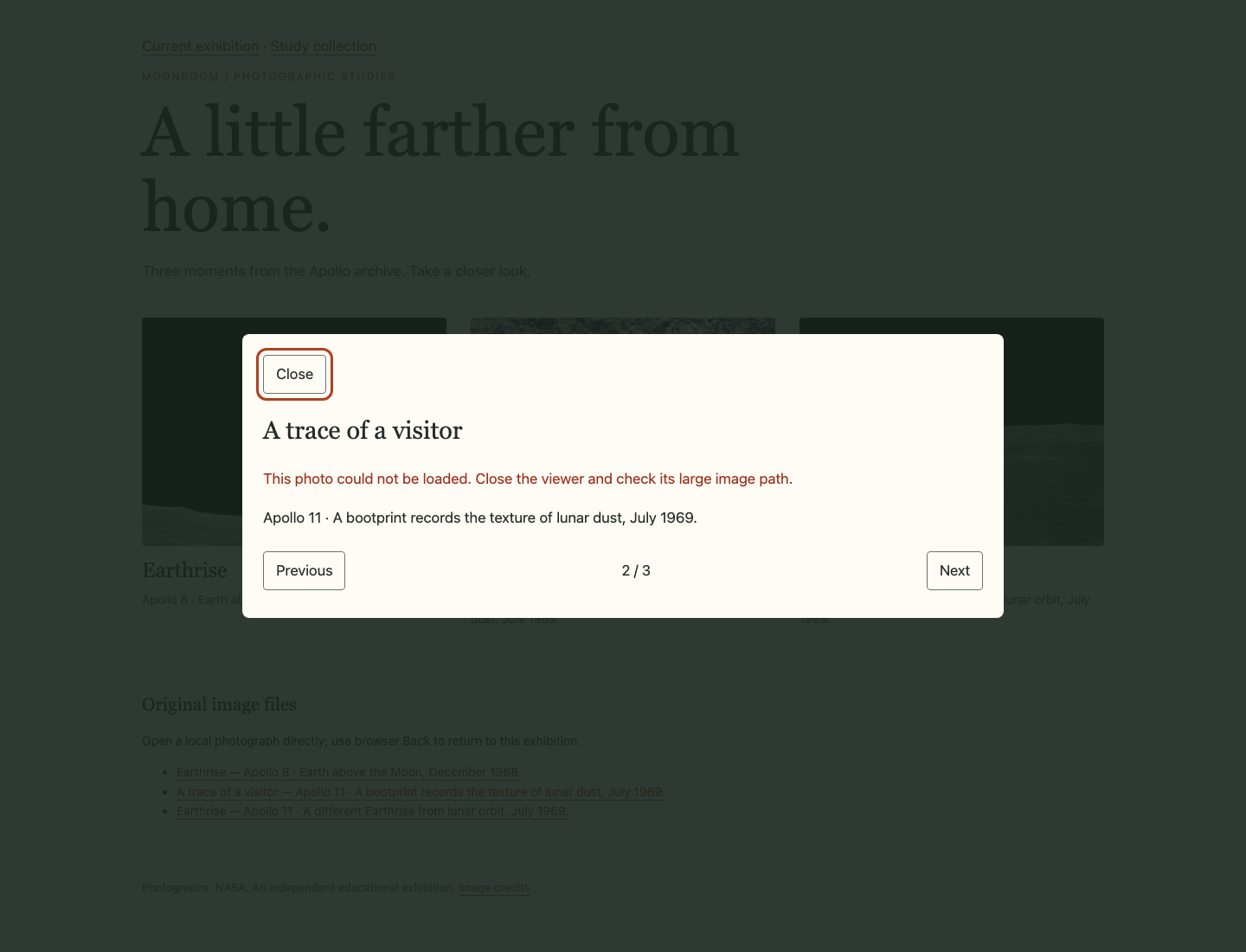
Observe the current bootprint context and absence of a substitute image, then use Tab and Enter on Next. The intact Apollo 11 image should load and the error should clear. Press Esc: focus returns to the bootprint card that originally opened the viewer. This recovers browsing, not the bad path itself.
Return to WebIDE, find the same footprint object, and restore its exact large value to images/footprint.jpg. Save. If this path change was your most recent edit, Undo can restore it too, but inspect the actual value before saving. Switch to Gallery, refresh Current exhibition so it reads the restored data, and open the bootprint again. Its real portrait image must decode without the error message. Refresh reloads page data; it does not reset saved work or recreate the environment.
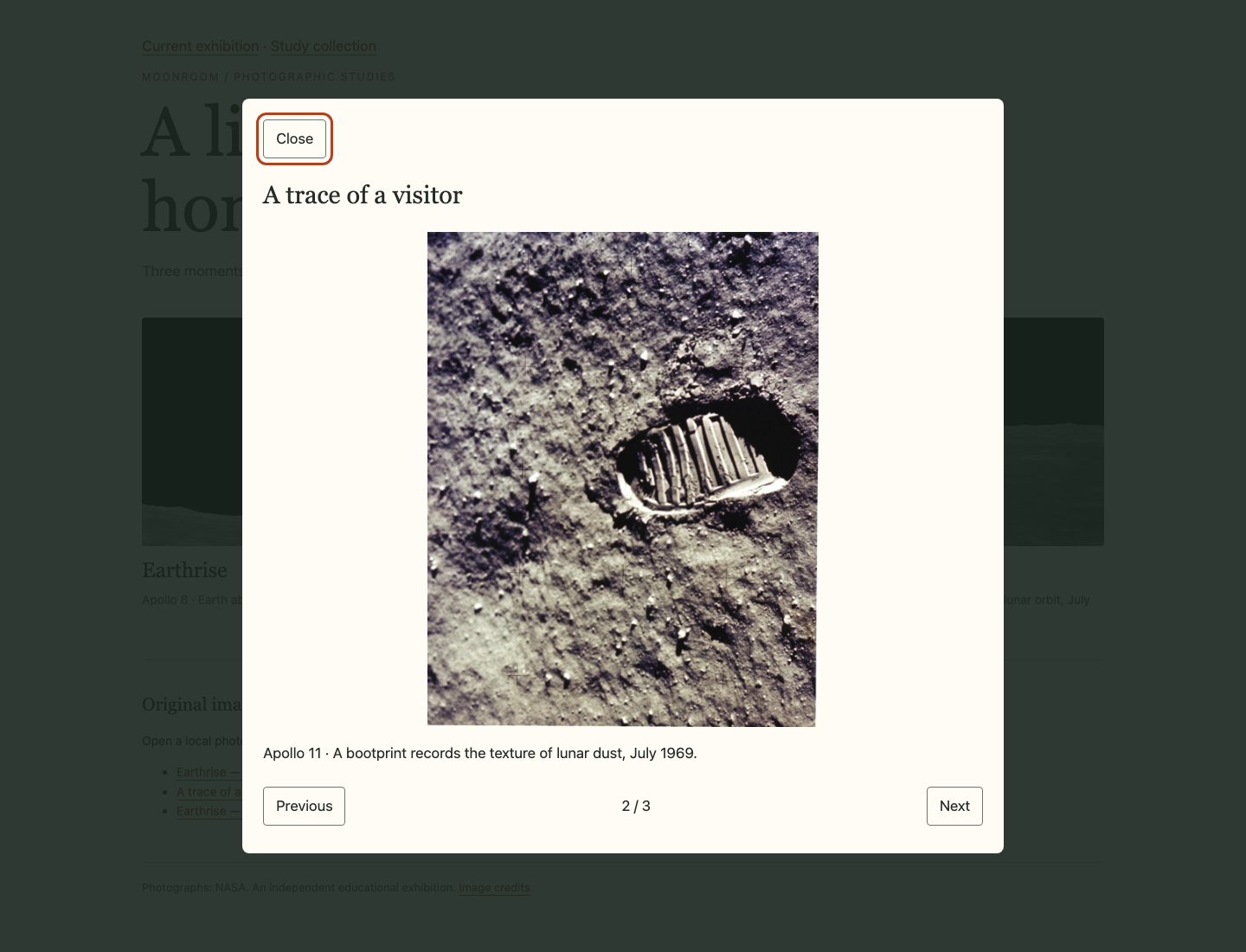
The whole portrait is visible without stretching and the message is gone. Check every independent card, forward/backward boundaries and both closing paths again. Narrow the website pane: the whole photograph and wrapped heading must fit the dialog without horizontal page scrolling. Keep all original thumbnails, data, images and credits.
If a typo stops the viewer, return to the affected function and compare braces, handler assignments and the source line with the small block. Undo only the mistaken edit or restore that local block, save and refresh. If the whole website is unavailable rather than one picture failing, confirm you are in Gallery and do not disguise it by swapping images. Run the final check only after restoring the original data. The check tests a missing image in a disposable copy of your files; it never deletes a photo in the actual exhibition.
Summary
You used stable IDs to show each photograph's real content in a native dialog. You added bounded previous/next navigation, preserved the original return point for Esc and Close, and handled a genuine missing-image request without substituting another picture. Your gallery keeps its grid, captions and other photographs usable while reporting a local failure honestly.